
Stop re-explaining your project to your AI
Every new AI coding session starts from zero, and the notes your assistant keeps are locked to one app on one laptop. Here's a free, five-step setup that gives every session a shared memory, plus what it records, what it costs, and how to switch it off.
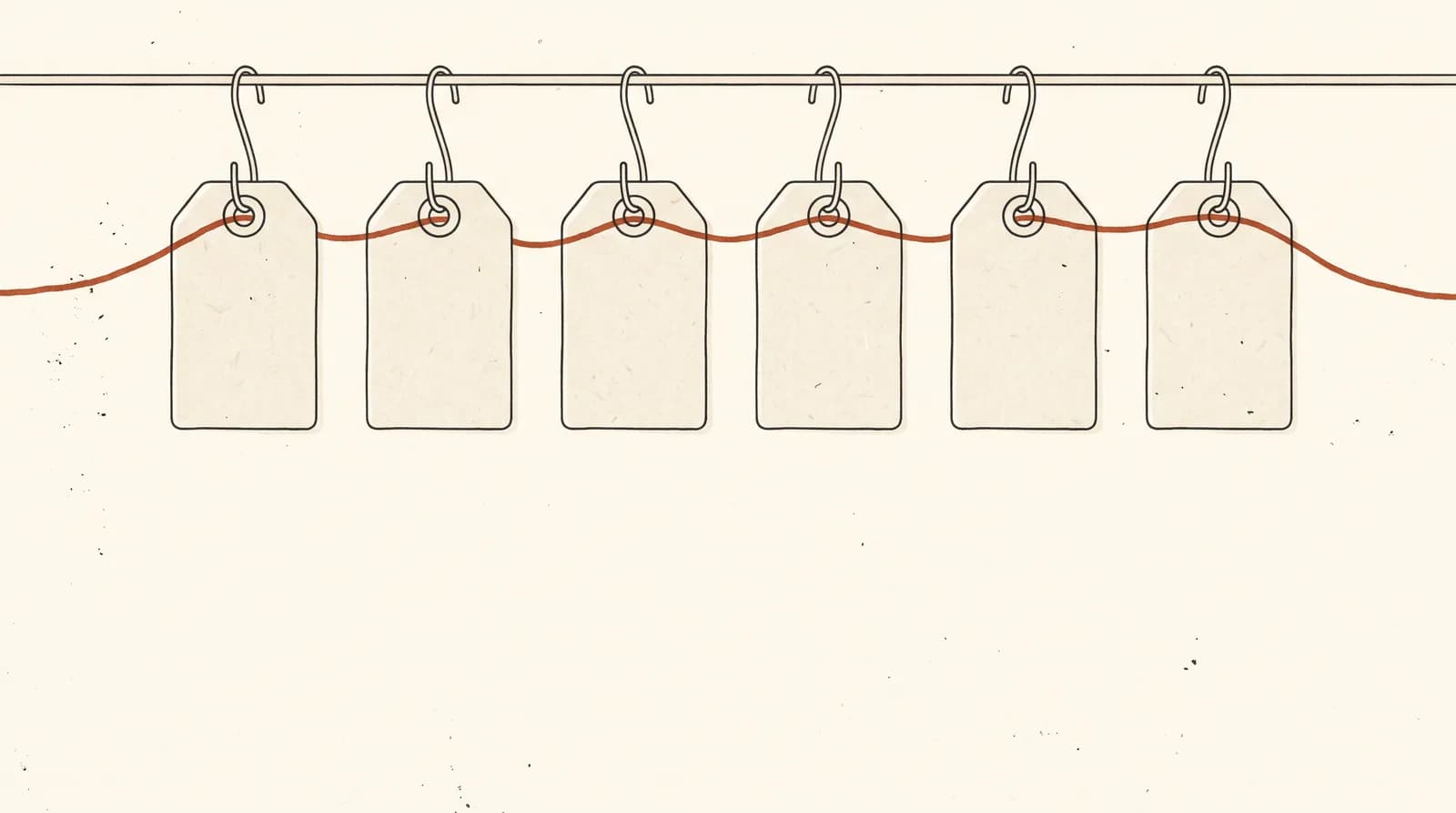
Open a new AI coding session and it knows nothing. Not what you decided yesterday, not the approach that already failed, not why that odd workaround is there. So you type the background out again, and you do it every time.
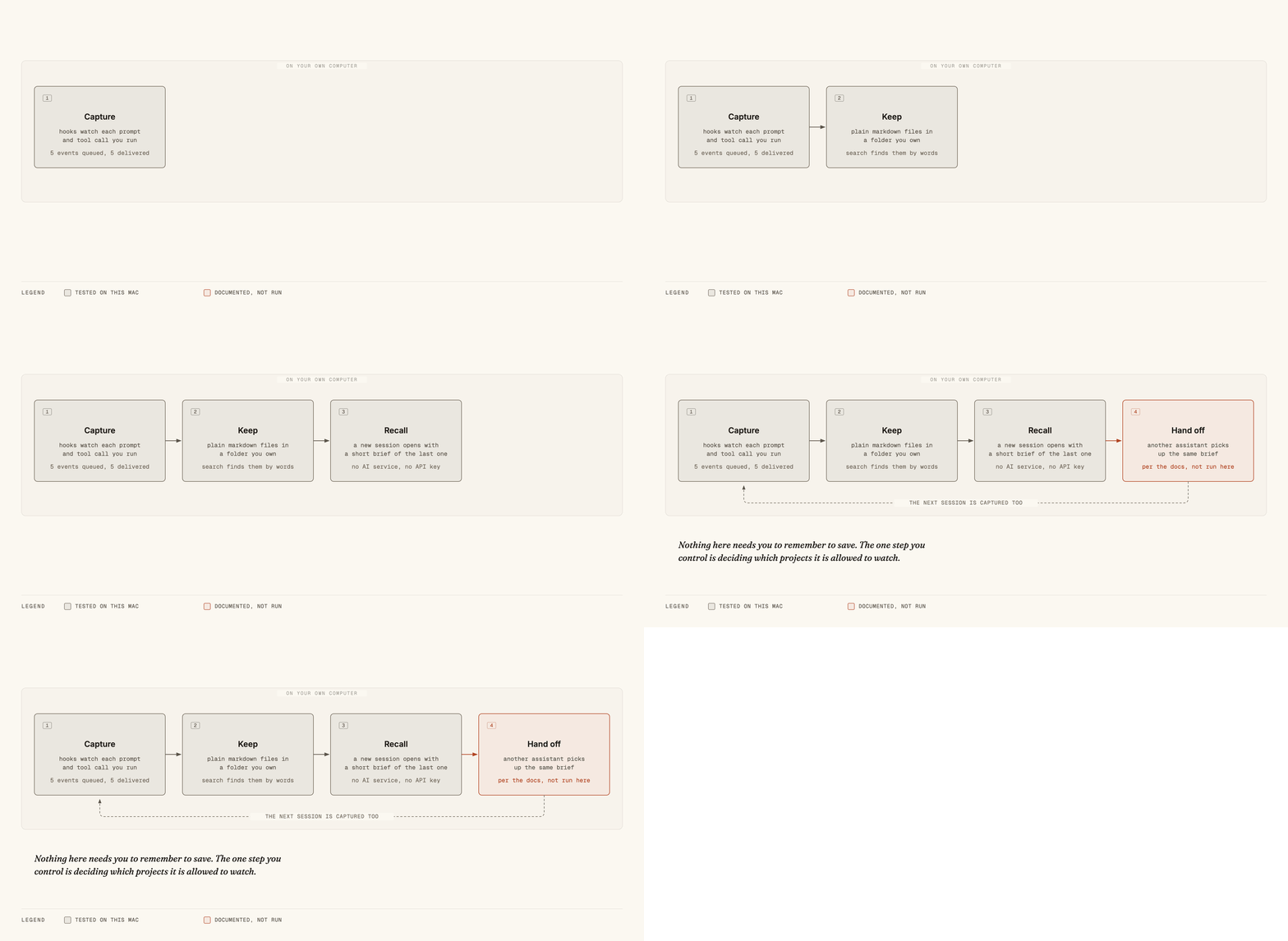
There is a free tool that fixes this. It records what your assistant does as you work, turns it into plain notes on your own computer, and hands the next session a short brief of where you left off. The next session can be the same tool, a different one, or the same one on another machine.
This issue is the setup: five steps, the commands to paste, what each one should print, and what it records, so you can decide before you install anything.
Why your assistant's own memory isn't enough
Claude Code already keeps notes. On this Mac it holds nine of them for the newsletter project, as ordinary files in a folder under ~/.claude.
They help, but they live on one laptop, only Claude Code reads them, and they hold only what the assistant chose to write down, not what actually happened. Switch to another assistant or another computer and you're back to explaining.
The tool is called ai-memory. It is free, open source (MIT licence), and runs as one program with no account. Over twenty coding assistants are on its supported list, including Claude Code, Codex, Cursor and Gemini CLI.
What to expect before you start
It costs nothing. The default setup makes no calls to any AI service, so you don't need an API key, and install plus setup took under a minute here.
It runs a small server on your own machine, reachable only from that machine (address 127.0.0.1, port 49374) and protected by a password file only you can read.
Once it's wired into Claude Code, it records your prompts and the tools your assistant used, in every project. It strips obvious passwords and keys first, but its own documentation calls that best-effort, not a guarantee. Step 5 shows how to keep a project out entirely.
It edits ~/.claude/settings.json and ~/.claude.json, and writes a backup next to each. One command undoes all of it.
Step 1: install it
On a Mac or Linux machine, in a terminal:
curl -fsSL https://github.com/akitaonrails/ai-memory/releases/latest/download/install.sh | shIt downloads the program for your chip, checks it against a published checksum, and refuses to install if they don't match. Everything goes under ~/.local, with no administrator password. You should see checksum verified, then installed ai-memory 3.2.2 (or newer).
If you'd rather read a script before running it, download install.sh from the same address and open it first. Windows has an equivalent PowerShell installer in the project's README.
Step 2: preview, then wire in one assistant
ai-memory setup --planThis changes nothing. It lists what setup would do and which assistants it found on your machine. On this Mac it found three and offered to wire all of them.
Start with one:
ai-memory setup --agent claude-codeIt shows the plan and asks first; answer y. It then creates the data folder and password file and adds the hooks. Restart Claude Code afterward so they load.
One snag I hit: setup couldn't write its background-service file and reported two problems. The wiring itself had still worked. If that happens to you, start the server by hand:
ai-memory serve --transport httpLeave that terminal open. When the service does install, it starts on its own at login.
Step 3: check it's recording
ai-memory status
ai-memory doctor
status shows counts of sessions and observations. After a few minutes of normal work they should climb. doctor compares your assistant's own session history against what ai-memory has captured, and names any assistant that ran here with nothing recorded.
If the server was off for a while, nothing is lost. Each hook queues its event on disk when it can't reach the server. In my test the queue held five events; one command delivered all five:
ai-memory recoverStep 4: tell it something worth keeping, and find it again
Recording happens on its own. For a decision you never want to lose, save it yourself:
ai-memory write-page --path decisions/mail.md --kind decision \
  --body "# Mail stays on reject
New senders need SPF or DKIM before their first send."

ai-memory search "new sender"
The search returned the page with the matching words highlighted. The page itself is an ordinary markdown file with a few lines of labels at the top, in a folder you can open, search with grep, edit by hand or back up like any other files. The database is only an index over them and can be rebuilt from the files.
To see what a fresh session receives, run the start-of-session hook by hand. When I did, it told the assistant that the newest work in the project came from a session that never ended, and how to read that session's latest activity.
Step 5: switch assistants, and keep things out
To carry the work to another assistant, launch it through ai-memory:
ai-memory run codexBy the project's docs, the first launch wires that assistant automatically, and the new one gets a handoff saying where you left off, what failed and what's still open. I haven't run this step: Codex isn't installed on this machine, so I can't tell you what the handoff reads like in practice.
To keep one project out of recording, put this in a file called .ai-memory.toml in that project's folder:
[capture]
ignore_paths = ["private/**", "~/personal-notes/**"]
It filters file operations and does a lexical check on shell commands. It is not a full content filter, so treat it as a guard rail. To undo everything:
ai-memory uninstall --applyWhat I haven't tested
The project says memory you actually use should fade slower than memory you don't, and that a rewrite pass can merge old notes while you're idle. Both are off by default, and I haven't tried either. I don't know whether merged notes are better than the originals or just shorter.
I'm going to find out. After a few weeks of real work in this setup, I want to see which notes the next session actually used and which ones it never touched.
— Zulqarnain
Get the next one
New teardowns as they land. Prompts, costs, and the parts that didn’t work.
Free forever. Unsubscribe in one click.